
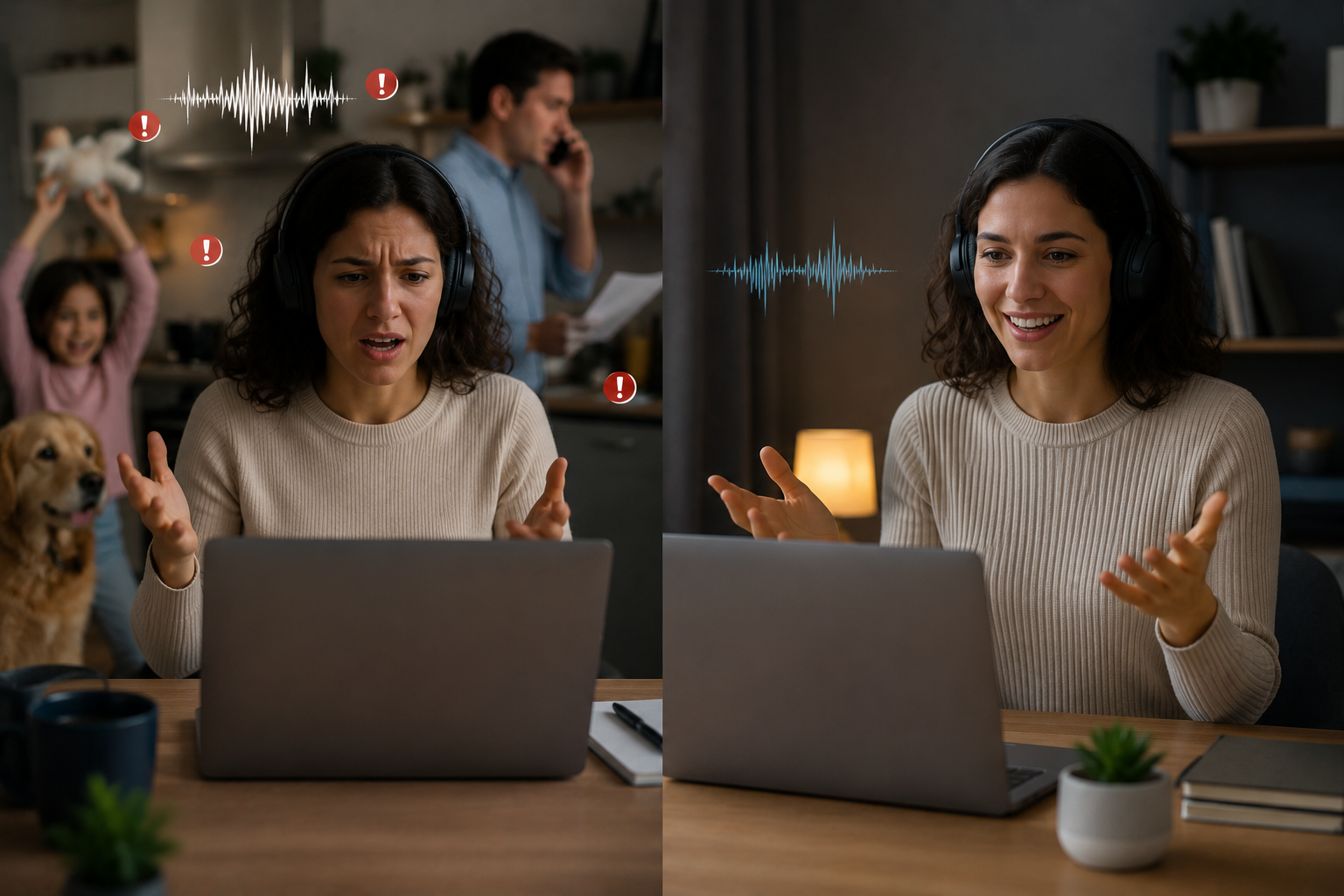
Your client leans forward on the screen, straining to hear you over the sound of your neighbor’s lawnmower. You repeat yourself for the third time. The meeting runs ten minutes long because half of what you said got lost in the static. By the end, you’re exhausted, your client is frustrated, and you look unprofessional—all because of a noise you stopped noticing hours ago.
Background noise is the invisible destroyer of video calls. It does not just make conversations harder. It makes you seem unprepared, forces you to repeat yourself, and drains the mental energy of everyone on the call. Research from Webex found that persistent background noise forces our brains to work 35% harder to process information, leading to cognitive fatigue that outlasts the meeting itself.
The worst part? Most of the noise you hear is not even coming from your own environment. It is the feedback loop of multiple microphones picking up multiple sources—keyboards, air conditioners, pets, children, and traffic—and layering them into a wall of sound that buries your voice.
Why Background Noise Is Worse Than You Think
We tolerate background noise because we adapt to it. Your brain filters out the hum of the refrigerator, the click of your own keyboard, and the distant sound of traffic. But the microphone on your laptop or headset does not adapt. It captures everything with equal enthusiasm, treating your voice and the barking dog as equally important audio signals.
According to RingCentral’s research, background noise during calls leads to five measurable problems: repeated questions, longer explanations, meetings running past schedule, miscommunication from missed words, and damaged professionalism—especially in client-facing calls.
The cognitive cost is real. When your brain has to filter noise to understand speech, it burns through working memory that should be dedicated to the content of the conversation. A one-hour call in a noisy environment leaves you as mentally drained as a two-hour call in a quiet room. This is why back-to-back video calls feel so exhausting—it is not just the screen time; it is the constant noise processing your brain performs without your permission.
Start With the Room, Not the Software
Before you download any app or buy any gadget, fix the space you are calling from. Software can only do so much with bad acoustics. A room with bare walls, hard floors, and no curtains will echo your voice back into the microphone, creating a hollow, distant sound that no noise-canceling algorithm can fully repair.
Absorb Sound Before It Escapes
Sound bounces off hard surfaces and gets absorbed by soft ones. The more soft surfaces in your room, the less noise your microphone picks up from reflections. You do not need professional acoustic panels. A thick rug on the floor, heavy curtains over windows, and even a bookshelf filled with books against the wall behind you will dramatically reduce echo.
If your home office is in a corner, place a soft chair or a folded blanket behind your desk. The goal is to break up flat surfaces that reflect sound directly back toward your microphone. Every soft object you add is a small acoustic upgrade that costs nothing.
Seal the Gaps
Noise travels through gaps under doors, around window frames, and through thin walls. Weather stripping around your office door creates a tight seal that blocks hallway noise and household sounds. A door draft stopper at the bottom of the door completes the barrier. These two items cost less than $20 combined and often make a bigger difference than expensive noise-canceling headphones.
If your office shares a wall with a noisy room—a kitchen, a living room, or a child’s bedroom—hang a thick tapestry or a sound blanket on that wall. The mass of the fabric absorbs vibrations that would otherwise pass straight through drywall.
Control What You Can Control
Turn off the air conditioning or fan during important calls. Close windows. Move your desk away from the wall that faces the street. Ask household members to avoid vacuuming or running the dishwasher during your meeting hours. These sound obvious, but most people never do them because they assume technology will handle the problem. Technology helps, but it works best when the noise level is already manageable.
The 30-Second Room Check
Before your next important call, clap once in your workspace. If you hear a distinct echo or ringing sound, your room needs more soft surfaces. The louder and longer the echo, the worse your microphone is making you sound to others.
Microphone Placement Matters More Than Microphone Quality
You do not need a $200 podcast microphone to sound professional. You need the microphone you already own to be in the right place. Most laptop microphones sit at the top of the screen, far from your mouth, picking up everything in the room equally. External USB microphones or headset microphones solve this by placing the capture point closer to your voice and farther from ambient noise.
If you use a laptop’s built-in microphone, position yourself so the screen is roughly an arm’s length away. Do not lean back in your chair, which increases the distance between your mouth and the mic. Speak directly toward the screen, not off to the side. If you type during calls, move the keyboard slightly to the side so your keystrokes do not aim directly at the microphone.
For headset microphones, the boom should sit at the corner of your mouth, not directly in front of it. This placement captures your voice while avoiding breath sounds and plosives. The foam windscreen that comes with most headsets is not decorative—it blocks the burst of air that hits the mic when you say words with P and B sounds.
Software Solutions That Actually Work
Once your room is as quiet as you can make it, software takes over the remaining noise. Modern noise suppression uses AI to distinguish between human speech and everything else, filtering in real time without requiring special hardware.
Built-In Platform Features
Zoom, Microsoft Teams, and Google Meet all include noise suppression settings that most users never enable. In Zoom, open Settings, choose Audio, and set Suppress Background Noise to “High” for maximum filtering. In Teams, go to Settings > Devices and select “High” from the Noise Suppression dropdown. These features use machine learning trained on thousands of hours of audio to identify and remove common distractions like keyboard clicks, door slams, and household appliances.
Third-Party Noise Cancellation Apps
For environments where built-in features are not enough, dedicated apps like Krisp run between your microphone and your meeting software, processing audio before it reaches the call. Krisp’s AI has been trained on over 20,000 distinct noise types and works with any headset or conferencing app.
The advantage of a dedicated app is consistency. Built-in platform features vary in quality and may reduce noise at the cost of voice clarity. Third-party tools often strike a better balance, preserving natural speech while aggressively filtering distractions. Most offer free tiers for personal use.
Hardware With Built-In Processing
Some modern headsets and conference devices include their own noise-canceling chips. These process audio at the hardware level before it ever reaches your computer, which reduces the load on your CPU and avoids the lag that software solutions sometimes introduce. Devices like the Neat Bar use spatial audio processing to create a “virtual bubble” around the speaker, amplifying the voice while ignoring sounds from outside the bubble.
The Echo Problem Most People Miss
If you are on a call and hear your own voice repeated back a split second after you speak, the echo is not coming from your room. It is coming from another participant’s speakers feeding back into their microphone. Ask everyone to use headphones. This single change eliminates 90% of echo problems in group calls. [Cite: web_search:12#1]
When Two People Share One Space
The hardest scenario is two people working in the same room, both on calls. Sound blankets hung between desks create a visual and acoustic barrier. Desk orientation matters — facing a wall rather than the center of the room directs your voice away from the other person’s microphone. White noise machines placed between the two desks can mask speech frequencies without adding distracting sounds.
Headphones are non-negotiable in shared spaces. Even if your microphone does not pick up the other person’s voice, their speakers will broadcast your call back into their room, creating a feedback loop that disrupts both conversations. Passive noise-isolating headphones work better than active noise cancellation for this scenario because they block sound physically rather than electronically, which preserves voice clarity for both parties.
Quick Wins for Your Next Call
Not every call warrants a full room redesign. For everyday meetings, these quick fixes make an immediate difference:
| Problem | Zero-Cost Fix | Small Investment Fix |
|---|---|---|
| Keyboard clicks | Move keyboard to side of desk; don’t type while speaking | External USB mic on boom arm |
| Room echo | Hang a blanket behind your chair | Acoustic foam panels |
| Outside traffic | Close windows; move desk away from window wall | Soundproof curtains |
| Household noise | Close door; ask for quiet during call hours | Door weather stripping + draft stopper |
| Feedback echo | Ask all participants to use headphones | Noise-canceling headset with mic |
When Noise Cancellation Goes Too Far
Modern noise suppression is powerful—sometimes too powerful. Aggressive filtering can cut off the first syllable of your sentences, make your voice sound compressed or artificial, and struggle when two people speak at once. If you notice participants asking you to repeat yourself more often after enabling noise suppression, dial the setting back from “High” to “Auto” or “Low.”
The best audio quality comes from a quiet room with minimal software processing, not from a noisy room with maximum filtering. Think of noise suppression as a safety net, not a primary strategy. Your goal should be a room quiet enough that you could turn the feature off and still sound clear.
The Professional Standard
In client-facing calls, your audio quality is part of your brand. A potential client who struggles to hear you will subconsciously associate that friction with your work. Clear audio signals competence, preparation, and respect for the other person’s time. The investment you make in your sound environment—even if it is just a $15 draft stopper and a borrowed blanket—pays dividends in every conversation that follows.
Related Articles
- Why Desk Height Causes Wrist Pain During Long Calls
- How to Position a Monitor to Stop Daily Neck Strain
- Simple Guide to Creating a Focus Zone in a Shared Home
- Why Cheap Chairs Hurt Your Posture More Than You Think
- Easy Ways to Store Papers Without a Filing Cabinet
- How to Set Boundaries When Family Shares Your Workspace
- Common Reasons Video Lighting Looks Unprofessional at Home
Sources and References
- Webex Blog. “Why Background Noise Removal Is Essential for Better Meetings.” Cisco, September 3, 2025. https://blog.webex.com/collaboration/why-background-noise-removal-is-essential-for-better-meetings/
- RingCentral. “How to Reduce Background Noise on Calls with AI.” July 14, 2025. https://www.ringcentral.com/us/en/blog/reduce-background-noise/
- Neat. “How to Eliminate Background Sounds During Video Call.” August 5, 2022. https://us.neat.no/resources/how-to-eliminate-background-sounds-during-video-call/
- Krisp. “Voice AI for Meetings: Noise Cancellation & AI Note Taker.” 2026. https://krisp.ai/
- Krisp Blog. “20 Cubicle Noise Reduction Strategies.” July 4, 2024. https://krisp.ai/blog/cubicle-noise-reduction/
- Maison de Pax. “5 Tips for Soundproofing a Home Office.” July 29, 2024. https://www.maisondepax.com/5-tips-for-soundproofing-a-home-office/
- Reddit r/workfromhome. “Solutions for Sound Reduction of Two WFH Offices in Large Room.” July 23, 2025. https://www.reddit.com/r/workfromhome/comments/vtj3it/solutions_for_sound_reduction_of_two_wfh_offices/
- Melp. “How to Reduce Background Noise During Video Call.” May 1, 2025. https://www.melp.us/blog/struggling-with-background-noise-during-video-calls-noise-suppression-can-help/

Elena Rodriguez is a certified home inspector and DIY educator specializing in maintenance routines, home repairs, decor optimization, office setup, and smart device integration. She helps homeowners tackle projects with confidence using tools they already own. Her writing focuses on actionable steps for cleaning, fixing, arranging, and automating. Elena holds a degree in Construction Management and contributes to home improvement resources regularly.